
Many professionals feel caught between two worlds. Our phones and computers are full of notifications. Yet, a simple notebook often feels more real and effective. This isn’t a sign of being outdated.
Science shows why. Writing by hand boosts memory and sharpens focus. Calendar apps are great for setting reminders and creating backups. The conflict disappears when you see them as complementary tools.
The best strategy is to use each tool for its strengths. You create a powerful, unified workflow. It combines the deep engagement of pen and paper with the convenience of technology.
This guide shows you how to merge both. You’ll learn to set up simple sync routines and do a productive weekly review. The aim is to organize better without losing the satisfaction of using a physical planner.
Why Hybrid Works: cognition of paper, speed of digital
Using both paper planners and apps is more than a trend. It’s based on how our brains process information and how tech speeds up tasks. This mix offers better results by using the best of both worlds.
Paper planning boosts your brain in many ways. Writing by hand engages your brain more than typing. Studies in Psychological Science show it improves understanding and memory. It makes you think deeper because it slows down your thoughts.
Paper also helps you stay focused. Unlike digital devices with constant alerts, a planner page is quiet. This quietness helps you focus better and do deep work. It also reduces the stress of switching between tasks too often.
On the other hand, digital tools are fast and useful. They’re great for organizing, searching, and planning for the future. You can quickly find old notes, set reminders, or share plans with others. Digital tools also back up your data, are easy to access from anywhere, and help you organize better.
The table below shows the main differences between paper and digital:
| Feature | Paper Advantage | Digital Advantage |
|---|---|---|
| Focus & Distraction | Zero notifications, promotes single-tasking and deep concentration. | Requires discipline to avoid multitasking; notifications can interrupt. |
| Memory & Learning | Superior for retention and understanding through handwriting mechanics. | Relies on external storage; search replaces memorization. |
| Access & Search | Immediate tactile access, but limited to physical location. | Instant search across vast archives, accessible anywhere with a device. |
| Collaboration & Sharing | Personal and non-scalable for real-time team work. | Enables real-time co-editing, sharing, and cloud-based collaboration. |
| Future Planning & Reminders | Static; requires manual review for time-based tasks. | Dynamic; allows for automated, future-dated alerts and recurring events. |
Paper is best for tasks that need deep thinking and focus:
- Brainstorming and strategic thinking
- Daily and weekly goal setting
- Journaling and reflection
- Acting as your primary capture inbox
Digital tools are better for tasks that need speed and connection:
- Storing reference information
- Managing complex calendars and alerts
- Collaborating on projects
- Executing searched-for tasks
By using each tool for its strengths, you get a smooth workflow. Paper helps your thinking, while digital tools speed up your actions. This is why hybrid planning systems work so well.
Roles: paper for focus/deep work; apps for alerts/search
Your paper planner and digital apps are like teammates. Each has its own special job. They work best when you use them for what they’re good at. This way, you avoid getting confused about where to put your notes.
Your paper planner is the primary capture zone and focus center. It’s where you start with your thoughts. Here, you can think deeply without digital distractions.
Use your paper planner for:
- Jotting down tasks as they pop into your head.
- Brainstorming ideas and sketching project plans.
- Taking meeting notes and journaling reflections.
- Writing your daily, focused “must-do” list for deep work.
Its main benefit is creating a single point of focus. There are no pop-up notifications. This helps your mind stay focused on the task.
Digital apps are the processing and command center. They handle tasks your paper planner can’t. This is where you organize, schedule, and search information for the long term.
Rely on apps like Google Calendar and Apple Calendar for:
- Time-specific alerts and reminders for appointments.
- Scheduling future events and complex project timelines.
- Storing reference materials and creating a searchable archive.
- Managing shared calendars and collaborative projects.
The digital world’s strength is search and automation. You can find any note quickly. You can also set recurring tasks and smart notifications that your paper book can’t.
| Tool | Best For | Core Function | Key Advantage |
|---|---|---|---|
| Paper Planner | Capture, brainstorming, daily task lists, deep work | Initial thought collection & focused execution | Eliminates digital distraction, enhances memory retention |
| Digital Apps (e.g., Google Calendar, Apple Calendar) | Alerts, scheduling, searching, long-term storage | Processing, organizing & time-based management | Powerful search, automation, & remote access |
This simple rule makes your system easy to follow. Is it a thought, note, or today’s priority? It goes on paper. Does it need an alarm, a future date, or to be found later? It goes digital. By letting paper handle focus and digital handle alerts, you create a powerful partnership. Your Google Calendar manages the when, while your Apple Calendar keeps shared commitments visible, all driven by the priorities you set on paper.
This clarity is the foundation. It stops you from wasting mental energy on “where to write this” and lets you focus on actually doing the work.
Daily Flow: capture, plan, execute, review
Mastering your day is simple. It’s about following a four-step rhythm: capture, plan, execute, and review. This daily flow turns your ideas into action.
Let’s explore how this cycle works from morning to night.
1. Capture: The Always-Open Net
Your day is filled with inputs like meeting notes and sudden ideas. The capture phase is to jot them down right away. Carry a small notebook or a planner section for this.
Write down everything without thinking too much. This clears your mind and keeps you from forgetting anything. A notebook is quicker and more reliable than your phone.
2. Plan: Distill and Direct
Every evening, do a quick review. This is when your system comes together. Use your notebook to sort through your notes.
First, add any scheduled tasks to your digital calendar. Then, go through each note or task. Put actionable items in your digital task manager, like Todoist.
Choose 3-5 key tasks for tomorrow. Write them down on a Post-it or in your planner. This helps you stay focused and avoid morning decisions.
Start your day with your digital tools for reference. But focus on your paper list first. Work on it hard.
There’s a big psychological benefit: physically crossing off a task. It feels more rewarding than a digital checkbox. This boosts your motivation and keeps you on track.
4. Review: Close the Loop
As the day ends, review your progress. Match your paper list with your digital tasks. Mark off what you’ve done in Todoist.
Go through any new notes from the day. This daily check-in takes 10-15 minutes. It helps you start fresh and focused for tomorrow.
This cycle makes the hybrid system real. It uses digital for organization and paper for focus. By following this, you build a strong and flexible way to work.
Sync Routines: weekly review, calendar reconciliation, automation
To keep your system in sync, focus on three key sync routines: weekly review, calendar reconciliation, and automation. These habits are like regular maintenance for your hybrid setup. Without them, your paper notes and digital alerts might clash, leading to double-bookings and missed deadlines.

Your weekly review is like a must-attend meeting for your productivity system. It’s inspired by methods like Getting Things Done (GTD). This session ensures no task or appointment is missed between your analog and digital tools.
A good weekly review has four main goals:
- Empty all paper capture points: Process every note, scribble, and to-do from your planner and notebooks.
- Migrate tasks to your digital system: Move any actionable items into your chosen task manager app for tracking and alerts.
- Review upcoming deadlines and goals: Check the next two weeks to plan for busy times and key deadlines.
- Reconcile paper notes with your digital calendar: This step is key to avoiding schedule conflicts.
Calendar reconciliation means making sure all time-bound commitments on paper are in your digital calendar. For example, if you wrote “Lunch with Sam – Thursday 1 PM” in your planner, it must be in your Google Calendar or Outlook. This makes your schedule clear and can send digital reminders.
A helpful habit is a quick nightly review. Each evening, spend two minutes checking your digital calendar for the next day’s fixed appointments. This helps keep your mental map and paper plan for tomorrow in sync with your digital schedule.
Automation can make these sync routines easier. For example, set a recurring reminder on your phone for your weekly review, like every Friday at 3 PM. For more advanced users, tools like IFTTT or Zapier can automate tasks. Imagine scanning a page from your meeting notes and having an automation add dates to your calendar.
By sticking to these sync routines, you merge two tools into one reliable system. The weekly review keeps everything complete, calendar reconciliation ensures accuracy, and automation provides the necessary reminders to keep things running smoothly.
Meeting Notes to Tasks: scanning, OCR, forwarding rules
QR codes make it easy to link paper notes to digital folders. This speeds up the work after meetings. The challenge is turning ideas into action. With the right tools, you can efficiently move from paper to digital.
There are three main ways to turn handwritten notes into digital tasks. Each method has its own balance of speed, effort, and searchability.
The first method is typing out your notes. After a meeting, you type the next steps into your task manager. This can be Todoist or Microsoft To Do.
This method is simple but takes time. Your original notes stay in paper form. They’re not searchable unless you file them perfectly.
The second method uses scanning and Optical Character Recognition (OCR). This is where technology helps a lot. Apps like Evernote, Microsoft OneNote, and Google Keep let you scan pages with your phone’s camera.
The OCR software reads your handwriting, making it searchable. You can find notes by keyword, just like digital documents. For a hands-off option, Mod Notebooks digitizes your notebook when you mail it in.
The third method is QR code linking. This method starts before the meeting. You print a QR code on your meeting template. This code links to a digital project folder, note, or task list.
After the meeting, scanning the QR code opens the right digital spot. You can then type tasks or upload a photo of your notes. It removes the need to wonder where to file things.
To make these processes easier, use forwarding rules. When scanning a note, use a consistent subject line like “Meeting Action Items.” Then, set up an email rule to automatically label and mark it as important.
Some task apps let you email tasks directly into them. You can scan your action items and send them to a special address. The app creates the task for you automatically. This simplifies the process.
Choosing the right method depends on your needs. Here’s a clear comparison:
| Method | Core Process | Best For | Key Advantage |
|---|---|---|---|
| Manual Entry | Review paper and type tasks into app. | Simple lists, low volume. | No new tech needed; ensures task review. |
| Scanning & OCR | Scan page; app makes text searchable. | Detailed notes, archiving, reference. | Creates a permanent, searchable digital record. |
| QR Code Linking | Scan pre-printed code to open digital file. | Recurring meetings, specific projects. | Extremely fast filing; direct project connection. |
For most professionals, a mix of methods works best. Use OCR for archiving notes. Use QR codes for projects needing quick action. The goal is to make moving from notes to tasks smooth. This lets you focus on doing the work, not just organizing it.
Templates: paper spreads that mirror digital views
Think of templates as blueprints for your paper and digital spaces. Switching between a blank page and a digital screen can be tough. Printable templates make this easier by matching your digital views. They are paper layouts that look and work like your digital tools.
These printables are your customizable bridge. They offer the feel of writing on paper but fit your digital world. For example, a printable weekly layout can match your Google Calendar’s view exactly. This saves your brain from extra work when switching between screen and paper.
Common hybrid planning templates include:
- A Weekly View: Looks like your digital calendar. It has columns for days, time slots, and a task list. Check out these bullet journal weekly spread printables for a classic example.
- A Daily Dashboard: Shows your task manager’s “Today” view. It has space for top tasks, meetings, and habit tracking.
- A Project Tracker: Looks like a Notion or Asana project page. It tracks goals, next steps, and updates.
- A Modular Habit Tracker: Aligns with habit-tracking apps, making logging easy.
This visual mirroring cuts down on mental effort during planning. It makes data entry quicker and boosts memory with handwriting. This is the power of tailored layouts on paper.
Begin with one digital view you always check. Find or create a printable that matches it. This template becomes the backbone of that area of your life. Printables transform your paper planner into a powerful, synchronized hub.
Use Cases: students, teachers, families, collectors, gift givers
Let’s see how students, teachers, families, and hobbyists can use this system. It’s not set in stone. It changes to fit each person’s needs, helping everyone in their own way.
Students find paper great for taking notes and planning study sessions. Writing helps them remember better. They can also use Notion for research, deadlines, and group projects. A photo of their weekly plan can be saved digitally, making it easy to find and keep safe.
Teachers get a lot out of it too. Paper planners are good for planning lessons, jotting down grades, and coming up with ideas. This work is done offline, away from digital distractions. The digital side helps with sharing lesson plans, emailing parents, and tracking student progress. It all comes together in a weekly review.
Families do well with a hybrid system too. A paper calendar on the fridge keeps everyone in the loop. It shows soccer practice, dentist visits, and family dinners. This is linked to a digital calendar, so parents can get reminders and send invites easily.
Collectors and hobbyists use it for keeping track of their collections. A notebook logs when they got something, its condition, or sketches. The digital side, like a special app or Notion database, has photos, values, insurance, and wishlists. The paper is for personal notes, and the digital for the details.
Gift givers can also use it to give thoughtful presents. A small notebook is great for jotting down ideas or sizes. The digital side helps with remembering birthdays, tracking orders, and keeping a list of gifts. This way, no good idea is missed, and every occasion is ready.
In every case, the idea is the same. Use paper for quick notes and planning. Use digital tools for reminders, sharing, and keeping things for a long time. This mix works well for everyone.
Starter Kit: planner + pen set + app stack + dock/stand
Start your journey to hybrid planning success with this essential shopping list. The right tools are key to a thriving system. This starter kit has everything you need to get started right away.
Choosing the right physical tools is important. Begin with a planner that fits your style. Here are some top picks:
- Bullet Journals: Blank notebooks for the creative.
- Structured Planners: Like the Paper Brains Quarterly Planner for guidance.
- Travel Notebook: A small notebook for ideas on the move.
- Post-it Notes: For quick tasks and reminders.
- Quality Pen Set: Enjoyable writing instruments.
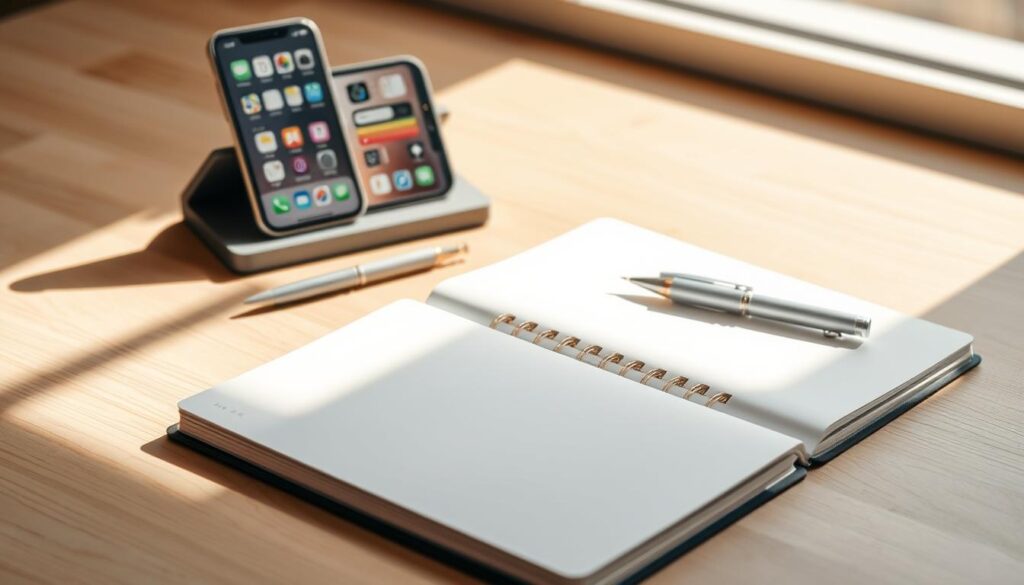
Your digital tools are just as important. A simple app stack keeps your digital space tidy. Focus on three main apps that work well with your paper planner.
Todoist is great for task management. It handles tasks, projects, and priorities well. Its quick capture feature works well with your paper habits.
Apple Calendar is perfect for time management. Its clean design and reliable alerts make it great for appointments. It integrates well across Apple devices, keeping your schedule up to date.
For reference, use apps like Notion or OneNote. They store documents, meeting notes, and research. They become your digital second brain, while your planner handles active projects.
A dedicated space for your planner is important. A simple stand or a special spot on your desk signals to your brain that it’s important. This creates a ritual for your tools.
Your starter kit might include:
- Paper Brains Quarterly Planner (main notebook)
- Pocket-sized notebook for travel
- Assorted Post-it notes in multiple sizes
- Favorite pen (gel, fountain, or rollerball)
- Todoist subscription for task management
- Apple Calendar for time blocking
- OneNote or Notion for digital reference
- Desk stand or designated planner area
This minimal set helps avoid analysis paralysis. Each tool has a specific role in your workflow. Physical tools engage your brain, while digital tools offer speed and reminders.
Start with these basics and adjust as you find what works best for you. Aim for a system that fits your unique needs. Your starter kit helps you focus on meaningful work.
Pitfalls & Fixes: double-booking, notification overload
Using a hybrid system is great, but it can have problems if not done right. These issues happen when paper and digital tools are mixed up or when important steps are missed. We’ll look at these problems and find easy ways to solve them.
The Double-Booking Dilemma. This problem happens when you book something in your paper planner but forget to update your digital calendar. The main cause is not syncing your calendars well. To fix it, make sure your digital calendar is the only place where you book things. Move all paper notes to your digital calendar every day or during your weekly review. This way, you avoid scheduling conflicts.
Notification & Alert Overload. Too many reminders can be overwhelming. You might have notes on your desk, reminders in your planner, and alerts from apps. This alert fatigue makes your system less effective. To solve it, have a daily routine to deal with all paper and digital reminders. Clear your desk and turn off non-essential app alerts. Let your digital tools handle reminders for you.
The “Out of Sight, Out of Mind” Paper Trap. Paper can’t remind you of things, making it easy to forget important tasks. To avoid this, use your paper planner for quick notes and your digital system for keeping track of tasks. This way, you won’t forget anything important.
Here’s a quick-reference table to summarize these common issues and their solutions:
| Pitfall | Root Cause | Concrete Fix |
|---|---|---|
| Double-Booking | Appointments exist in both paper and digital without synchronization. | Designate the digital calendar as the single master for all appointments. Religiously transfer paper notes. |
| Notification Overload | Alerts and reminders are scattered across physical notes and multiple apps. | Implement a daily processing ritual to clear paper captures and consolidate digital alert settings. |
| Forgotten Paper Tasks | Paper notes are not reviewed or integrated into the active digital workflow. | Adhere to the daily capture and review routine. Use paper for initial capture only, not for task storage. |
Fixing these problems doesn’t make things more complicated. It strengthens your hybrid system. By following your routines and assigning roles, you turn problems into proof of a strong planning method.
Quick-Start Worksheets + App Integrations List
Start your hybrid planning system today. We offer direct resources to begin your seamless scheduling routine.
Download our quick-start PDF worksheets. The daily planning page helps you organize your capture and execute phases. The weekly review checklist guides your sync routine for calendar reconciliation.
Integrate paper with a curated app stack. Adobe Scan turns handwritten notes into searchable PDFs for cloud storage like Google Drive. For task entry, use Todoist or Microsoft To Do from your phone.
Start building your system now. These tools make the hybrid method immediate and effective. Combine the focus of paper planners with the speed of digital apps.
